> ## Documentation Index
> Fetch the complete documentation index at: https://wisty.ai/docs/llms.txt
> Use this file to discover all available pages before exploring further.
# Work on a project
> Find your way around the editor, refine a build, and restore saved work.
Open **My projects** and select a [project](/docs/getting-started/key-concepts#project) to continue working on it. A project holds your conversation, source files, and saved [versions](/docs/getting-started/key-concepts#version); publishing makes a version available as an app.
## Find your way around
Chat is on the left, with your working area on the right.
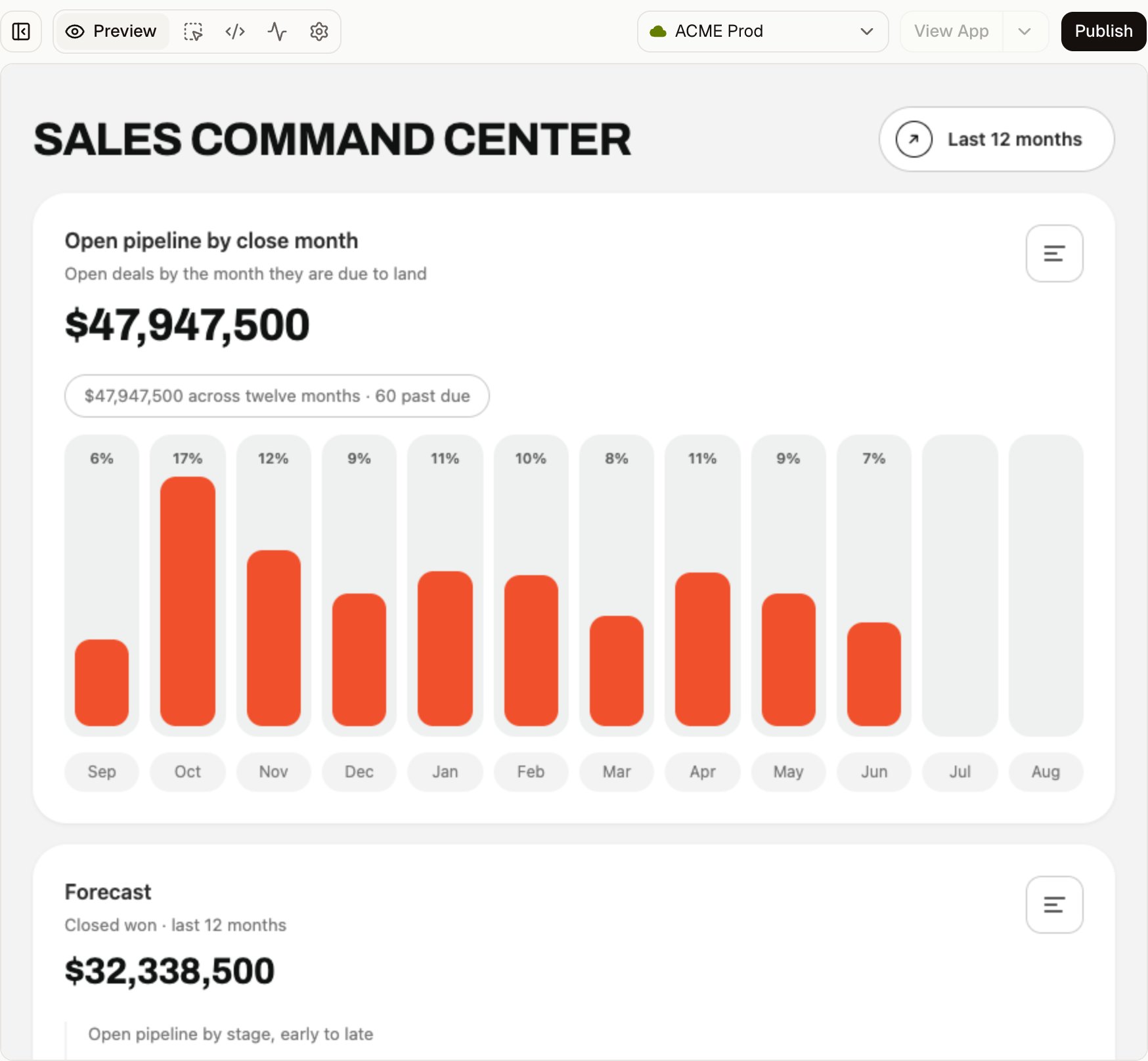 | Control | Use it to |
| ---------------- | --------------------------------------------------------------- |
| **Preview** | Try the running app with Salesforce data. |
| **Edit** | Make [visual changes without AI](/docs/building/editing-without-ai). |
| **Code** | Read or edit source files and download the project. |
| **Network** | Inspect Salesforce requests and record-write activity. |
| **Settings** | [Control Salesforce access](/docs/building/salesforce-access). |
| **Show history** | Browse saved versions above the chat panel. |
| **Publish** | Make a version available to viewers. |
| **View App** | Open the published result. |
Use a desktop browser for **Edit**, **Code**, and **Network**. These tabs aren't shown in the small-screen layout.
## Change the connected org
In the Wisty web app, click the current org's name in the header above the preview, beside **View App**. Choose another [connected org](/docs/getting-started/key-concepts#connected-org) from the list. In narrower desktop windows, use the **Switch org** icon.
This changes your selected connection in this workspace, including other projects you open there. Check the org before generating or testing against its data. To add or reconnect an org, see [Connect Salesforce](/docs/getting-started/connect-salesforce).
With [builder access](/docs/salesforce-setup/control-access#grant-building-access-in-salesforce), you can generate and publish apps inside Salesforce. Projects created there stay tied to that Salesforce org and can't switch to another org.
## Refine the result in chat
Describe the next change in the message box. Be specific about the behavior you want: “Keep the current columns and add a stage filter” gives Wisty a clear scope.
Wisty shows its progress in chat and updates the preview as changes are saved. Try the result when generation finishes. You can choose a model and reasoning level in the composer before sending a message.
Before the first build, Wisty may ask a few questions if a missing detail would change the result. Answer them to continue. For object mentions and reference images, see [Describe what you need](/docs/building/describe-what-you-need).
### Queue a change or stop generation
While a build is running, type your next instruction and click **Queue**. The message waits until Wisty is ready. Expand the queued-prompt panel above the composer to edit or remove a waiting message.
Click **Stop generation** to stop the current work. Check the preview and history afterward to see what has already been saved before deciding what to ask next.
If you also want to cancel waiting changes, remove those messages from the queue.
## Restore an earlier version
1. Click **Show history**, the history icon above chat.
2. Find the saved version you want and click **Restore** on its row.
3. Check the version in the confirmation, then click **Restore** again.
| Control | Use it to |
| ---------------- | --------------------------------------------------------------- |
| **Preview** | Try the running app with Salesforce data. |
| **Edit** | Make [visual changes without AI](/docs/building/editing-without-ai). |
| **Code** | Read or edit source files and download the project. |
| **Network** | Inspect Salesforce requests and record-write activity. |
| **Settings** | [Control Salesforce access](/docs/building/salesforce-access). |
| **Show history** | Browse saved versions above the chat panel. |
| **Publish** | Make a version available to viewers. |
| **View App** | Open the published result. |
Use a desktop browser for **Edit**, **Code**, and **Network**. These tabs aren't shown in the small-screen layout.
## Change the connected org
In the Wisty web app, click the current org's name in the header above the preview, beside **View App**. Choose another [connected org](/docs/getting-started/key-concepts#connected-org) from the list. In narrower desktop windows, use the **Switch org** icon.
This changes your selected connection in this workspace, including other projects you open there. Check the org before generating or testing against its data. To add or reconnect an org, see [Connect Salesforce](/docs/getting-started/connect-salesforce).
With [builder access](/docs/salesforce-setup/control-access#grant-building-access-in-salesforce), you can generate and publish apps inside Salesforce. Projects created there stay tied to that Salesforce org and can't switch to another org.
## Refine the result in chat
Describe the next change in the message box. Be specific about the behavior you want: “Keep the current columns and add a stage filter” gives Wisty a clear scope.
Wisty shows its progress in chat and updates the preview as changes are saved. Try the result when generation finishes. You can choose a model and reasoning level in the composer before sending a message.
Before the first build, Wisty may ask a few questions if a missing detail would change the result. Answer them to continue. For object mentions and reference images, see [Describe what you need](/docs/building/describe-what-you-need).
### Queue a change or stop generation
While a build is running, type your next instruction and click **Queue**. The message waits until Wisty is ready. Expand the queued-prompt panel above the composer to edit or remove a waiting message.
Click **Stop generation** to stop the current work. Check the preview and history afterward to see what has already been saved before deciding what to ask next.
If you also want to cancel waiting changes, remove those messages from the queue.
## Restore an earlier version
1. Click **Show history**, the history icon above chat.
2. Find the saved version you want and click **Restore** on its row.
3. Check the version in the confirmation, then click **Restore** again.
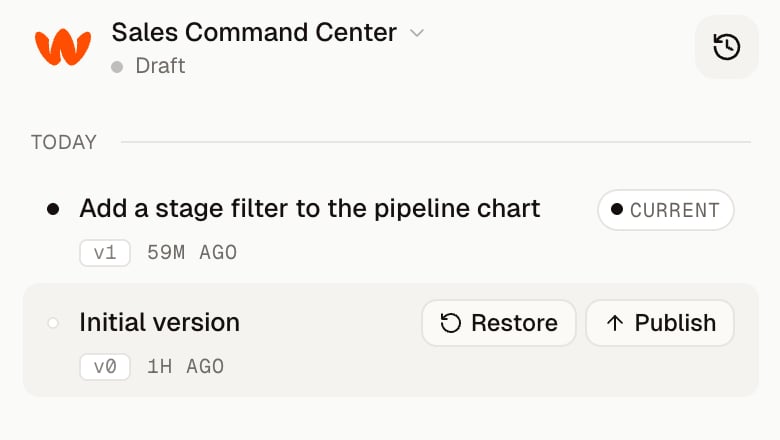 The restored work becomes the current project and adds a new history entry. Earlier entries remain available, so you can restore again if needed.
Restoring changes your project. Viewers keep seeing the published app until you [publish the restored version](/docs/publishing/publish).
## Preview a record-page app
A project built for a Salesforce record page needs a test record to show record-specific content. When Wisty enables record context, a chip appears above the preview.
1. Click **No preview record**.
2. Paste the Salesforce [record ID](/docs/getting-started/key-concepts#record-id) you want to use for testing.
3. Click **Apply**.
The chip changes to **Preview record set**, and the preview loads that record's context. You can find a record's ID in its Salesforce page URL. Use a record of the object the project was built for.
To test another record, open the chip and replace the ID. **Clear** removes the test record. The record chosen here is for the builder preview; a published app embedded on a Salesforce record page receives that page's record.
See [Add an app to Salesforce](/docs/publishing/embed-in-salesforce) for placement instructions.
## Recover from a problem
A preview build error can show a **Fix this** button. Click it to ask Wisty to repair the reported error. If generation fails, use **Retry** in the error message.
For missing data, blocked requests, or a preview that won't load, follow [Fix common problems](/docs/help/troubleshooting).
Generation uses your team's shared [credits](/docs/billing/credits-and-plans). Manual visual and code edits don't use credits.
The restored work becomes the current project and adds a new history entry. Earlier entries remain available, so you can restore again if needed.
Restoring changes your project. Viewers keep seeing the published app until you [publish the restored version](/docs/publishing/publish).
## Preview a record-page app
A project built for a Salesforce record page needs a test record to show record-specific content. When Wisty enables record context, a chip appears above the preview.
1. Click **No preview record**.
2. Paste the Salesforce [record ID](/docs/getting-started/key-concepts#record-id) you want to use for testing.
3. Click **Apply**.
The chip changes to **Preview record set**, and the preview loads that record's context. You can find a record's ID in its Salesforce page URL. Use a record of the object the project was built for.
To test another record, open the chip and replace the ID. **Clear** removes the test record. The record chosen here is for the builder preview; a published app embedded on a Salesforce record page receives that page's record.
See [Add an app to Salesforce](/docs/publishing/embed-in-salesforce) for placement instructions.
## Recover from a problem
A preview build error can show a **Fix this** button. Click it to ask Wisty to repair the reported error. If generation fails, use **Retry** in the error message.
For missing data, blocked requests, or a preview that won't load, follow [Fix common problems](/docs/help/troubleshooting).
Generation uses your team's shared [credits](/docs/billing/credits-and-plans). Manual visual and code edits don't use credits.