> ## Documentation Index
> Fetch the complete documentation index at: https://wisty.ai/docs/llms.txt
> Use this file to discover all available pages before exploring further.
# Control Salesforce access
> Choose which kinds of Salesforce requests your project and published app can make.
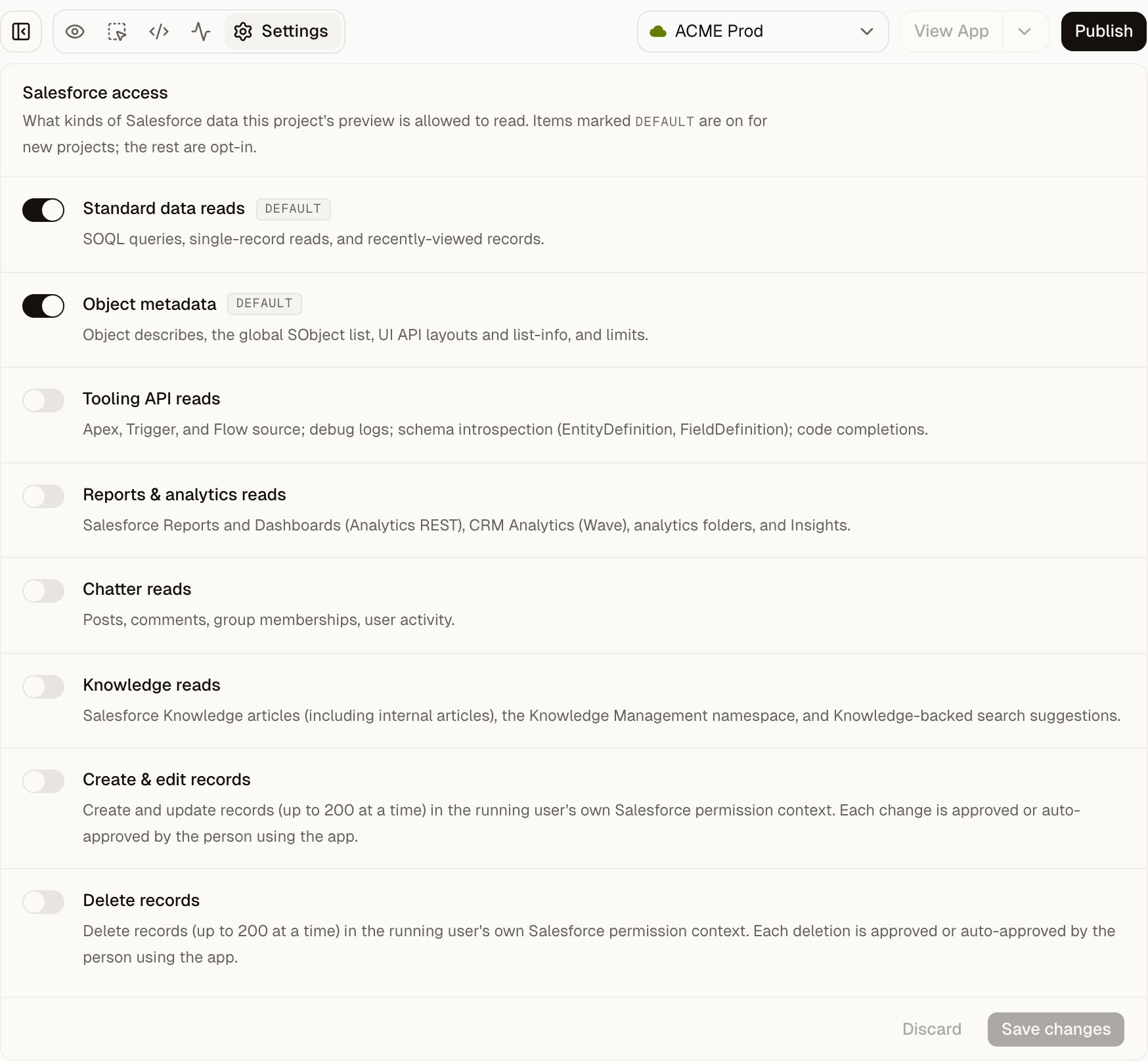
Open **Settings** in your project, enable the access it needs, and click **Save changes**. These controls apply to the running preview; a published app picks up changes when you publish again.
## Choose the access your app needs
Every new project starts with standard data reads and object metadata enabled. The other categories are off.
| Control | Default | Use it for |
| ----------------------------- | ------------------------------- | ----------------------------------------------------------- |
| **Standard data reads** | On | Salesforce record lists, queries, and record details. |
| **Object metadata** | On | Object and field definitions, layouts, and org limits. |
| **Tooling API reads** | Off | Inspecting Apex, triggers, Flow definitions, or debug logs. |
| **Reports & analytics reads** | Off | Salesforce reports, dashboards, and CRM Analytics. |
| **Chatter reads** | Off | Chatter posts, comments, feeds, and groups. |
| **Knowledge reads** | Off | Salesforce Knowledge articles. |
| **Create & edit records** | Off | Creating or updating records after viewer approval. |
| **Delete records** | Off | Deleting records after viewer approval. |
The write controls have an additional approval step, including optional auto-approval for published apps. See [Update Salesforce records](/docs/building/record-writes).
Wisty checks the app's requests against these categories before sending them to Salesforce. Salesforce then applies the running user's own permissions. Turning a category on doesn't grant access to records or fields that Salesforce denies.
These are categories of requests, not a list of allowed objects or fields. Manage object, field, and record permissions in Salesforce.
## Save an access change
1. Open the project's **Settings** tab.
2. Turn the required control on or off.
3. Click **Save changes**.
4. Return to **Preview** and try the relevant feature.
 If people already use a published version, [publish changes](/docs/publishing/publish) to apply the new access settings there too. Saving project settings alone doesn't change the published app's access.
## Respond to an access request in chat
When Wisty needs an access category that's off, it can show an **Allow access** card in chat. Read the category and its description.
If people already use a published version, [publish changes](/docs/publishing/publish) to apply the new access settings there too. Saving project settings alone doesn't change the published app's access.
## Respond to an access request in chat
When Wisty needs an access category that's off, it can show an **Allow access** card in chat. Read the category and its description.
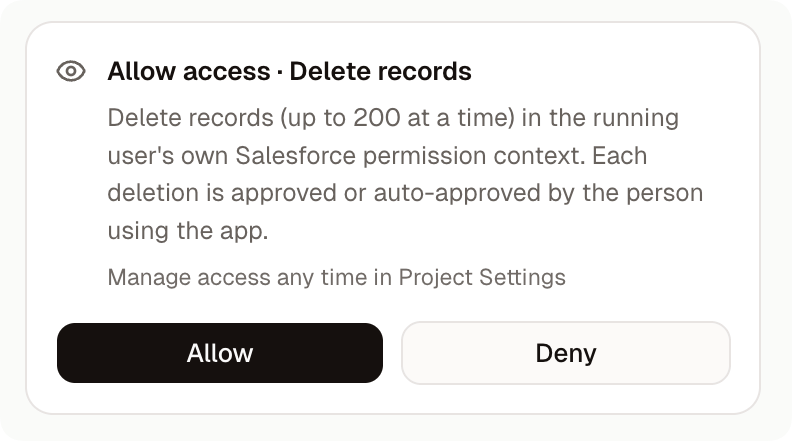 Click **Allow** to enable it and continue the build. Click **Deny** to have Wisty continue without it. You can change the setting later in **Settings**.
The card enables a category for the project. It doesn't approve an individual Salesforce record change.
## Inspect a blocked request
Use **Network** on a desktop browser to see Salesforce requests made by the preview.
1. Open **Network** and choose **Blocked**.
2. Expand a request to read why it was refused.
3. If it names a missing access category, click **Open in Settings**.
4. Enable it only if the feature needs it, click **Save changes**, and try the feature again.
An unsupported request can also be blocked. Enabling more categories won't make an unsupported endpoint available; ask Wisty to change the feature.
### When Salesforce returns an error
Choose **Errors** in **Network** and expand the failed request. A **Fix this** button is available for errors Wisty can help repair. Connection or permission problems may need action in Salesforce instead.
The **All** and **OK** filters help you inspect successful requests. The panel shows details such as the request path, query, status, and duration. The **Writes** section below it shows record-write activity without the record values.
These controls govern the running app. For the separate limits on what the generating model receives, see [How Wisty uses your data](/docs/security/data-handling).
Click **Allow** to enable it and continue the build. Click **Deny** to have Wisty continue without it. You can change the setting later in **Settings**.
The card enables a category for the project. It doesn't approve an individual Salesforce record change.
## Inspect a blocked request
Use **Network** on a desktop browser to see Salesforce requests made by the preview.
1. Open **Network** and choose **Blocked**.
2. Expand a request to read why it was refused.
3. If it names a missing access category, click **Open in Settings**.
4. Enable it only if the feature needs it, click **Save changes**, and try the feature again.
An unsupported request can also be blocked. Enabling more categories won't make an unsupported endpoint available; ask Wisty to change the feature.
### When Salesforce returns an error
Choose **Errors** in **Network** and expand the failed request. A **Fix this** button is available for errors Wisty can help repair. Connection or permission problems may need action in Salesforce instead.
The **All** and **OK** filters help you inspect successful requests. The panel shows details such as the request path, query, status, and duration. The **Writes** section below it shows record-write activity without the record values.
These controls govern the running app. For the separate limits on what the generating model receives, see [How Wisty uses your data](/docs/security/data-handling).