> ## Documentation Index
> Fetch the complete documentation index at: https://wisty.ai/docs/llms.txt
> Use this file to discover all available pages before exploring further.
# Start from a template
> Preview a ready-made layout and adapt it to your Salesforce org.
export const ExamplePrompt = ({text}) => {text};
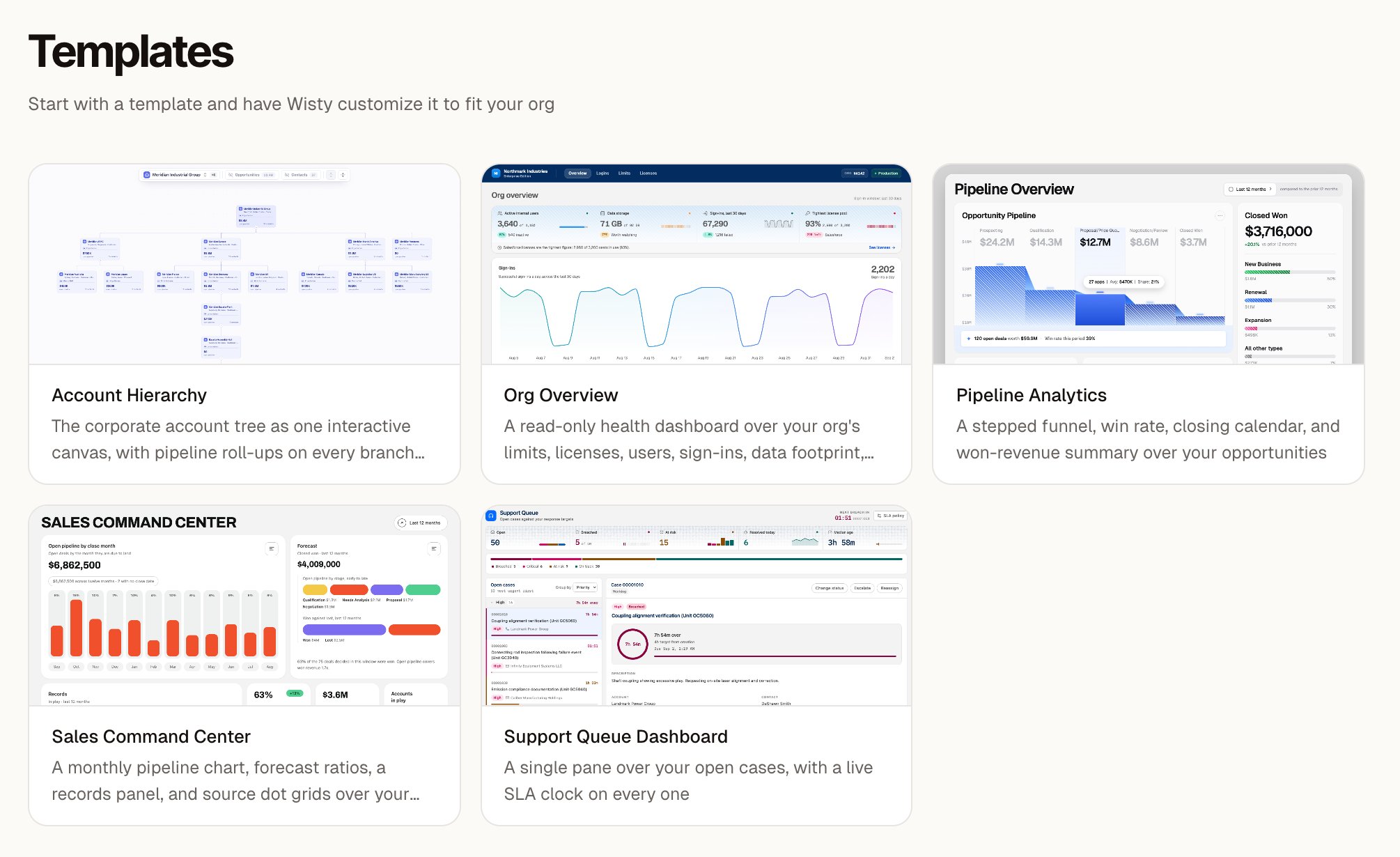
Open **Templates** in the sidebar to start with an existing layout. Choose a [template](/docs/getting-started/key-concepts#template), then click **Use template** to create your own project.
 ## Choose and adapt a template
Open **Templates** and select one that fits the job. Read its description and try the preview. If a **Preview** button is available, it opens the demo in a separate tab.
The demo uses sample data. It doesn't show records from your Salesforce org.
Click **Use template**. Wisty opens a new project with the template's layout and design style.
Wisty asks how you'd like to tailor it. If you haven't connected Salesforce, [connect an org](/docs/getting-started/connect-salesforce) before asking it to adapt the data.
Answer in chat. Name the team, filters, or custom fields that should guide the adaptation. For example:
Wisty adapts the template's data queries to your org. If a section needs a field your org doesn't have, it can use an appropriate equivalent or leave that section empty and explain why.
Try the filters and open the sections you plan to use. Check that the data matches your intended scope.
Continue in chat to change the layout or behavior, or use [Edit without AI](/docs/building/editing-without-ai) for small visual changes. When it's ready, [publish the app](/docs/publishing/publish).
Using a template creates editable work in your account. Your changes don't alter the template in the gallery. Generation uses your normal [credit balance](/docs/billing/credits-and-plans).
If the gallery has no templates available, you can still [build from a prompt](/docs/getting-started/quickstart).
## Choose and adapt a template
Open **Templates** and select one that fits the job. Read its description and try the preview. If a **Preview** button is available, it opens the demo in a separate tab.
The demo uses sample data. It doesn't show records from your Salesforce org.
Click **Use template**. Wisty opens a new project with the template's layout and design style.
Wisty asks how you'd like to tailor it. If you haven't connected Salesforce, [connect an org](/docs/getting-started/connect-salesforce) before asking it to adapt the data.
Answer in chat. Name the team, filters, or custom fields that should guide the adaptation. For example:
Wisty adapts the template's data queries to your org. If a section needs a field your org doesn't have, it can use an appropriate equivalent or leave that section empty and explain why.
Try the filters and open the sections you plan to use. Check that the data matches your intended scope.
Continue in chat to change the layout or behavior, or use [Edit without AI](/docs/building/editing-without-ai) for small visual changes. When it's ready, [publish the app](/docs/publishing/publish).
Using a template creates editable work in your account. Your changes don't alter the template in the gallery. Generation uses your normal [credit balance](/docs/billing/credits-and-plans).
If the gallery has no templates available, you can still [build from a prompt](/docs/getting-started/quickstart).