> ## Documentation Index
> Fetch the complete documentation index at: https://wisty.ai/docs/llms.txt
> Use this file to discover all available pages before exploring further.
# Share and open apps
> Choose an audience, copy a link, and help viewers open the app with their own Salesforce access.
Open **Publish**, then **Sharing**, to choose who can open your app. [Viewers](/docs/getting-started/key-concepts#viewer) can use it in the Wisty workspace, inside Salesforce, or from a Salesforce sign-in link.
| Where viewers work | Share with | How they open the app |
| --------------------- | ------------------------------------------------------- | ------------------------------------------------------------------- |
| Your Wisty workspace | **Everyone in your team** | Sign in to Wisty and open **Shared with me**. |
| Inside Salesforce | The relevant **Host orgs** | Open the **Wisty** tab or a page where an admin has placed the app. |
| A link in any browser | The relevant **Host orgs**, with Salesforce Web enabled | Follow the link and click **Sign in with Salesforce**. |
A [host org](/docs/getting-started/key-concepts#host-org) links a Salesforce org to your Wisty team so you can share apps with its users. An admin [connects it once](/docs/salesforce-setup/connect-host-org). People opening apps through Salesforce don't need a Wisty account.
```mermaid actions={false} theme={null}
---
config:
theme: base
themeVariables:
fontFamily: inherit
fontSize: 15px
lineColor: "#8C817A"
edgeLabelBackground: "#FFFFFF"
flowchart:
nodeSpacing: 24
rankSpacing: 32
padding: 12
curve: basis
---
flowchart TB
accTitle: Three ways to open the same published app
accDescr: Viewers open one published app from the Wisty workspace, from inside Salesforce, or from a Salesforce Web link. In every path the app reads Salesforce records with the viewer's own permissions.
T["Wisty workspace
Shared with me"]:::input
C["Inside Salesforce
Wisty tab or a Lightning page"]:::input
L["Salesforce Web link
Sign in with Salesforce"]:::input
A("Published app"):::app
R[("Salesforce records")]:::data
T --> A
C --> A
L --> A
A <-->|"Viewer's permissions"| R
classDef input fill:#F5F3F0,stroke:#D6CFC8,color:#51463F,stroke-width:1px;
classDef process fill:#FFF1E8,stroke:#D94400,color:#8A2C0D,stroke-width:1.5px;
classDef app fill:#FFF1E8,stroke:#D94400,color:#8A2C0D,stroke-width:2px;
classDef data fill:#EFF6F1,stroke:#8AA995,color:#315640,stroke-width:1px;
classDef blocked fill:#FFFFFF,stroke:#B9ADA3,color:#8C817A,stroke-width:1px,stroke-dasharray:4 3;
linkStyle default stroke:#8C817A,stroke-width:1.5px;
```
## Change who can open an app
New projects start private. Only their owner can open the published app until [sharing](/docs/getting-started/key-concepts#sharing) is enabled.
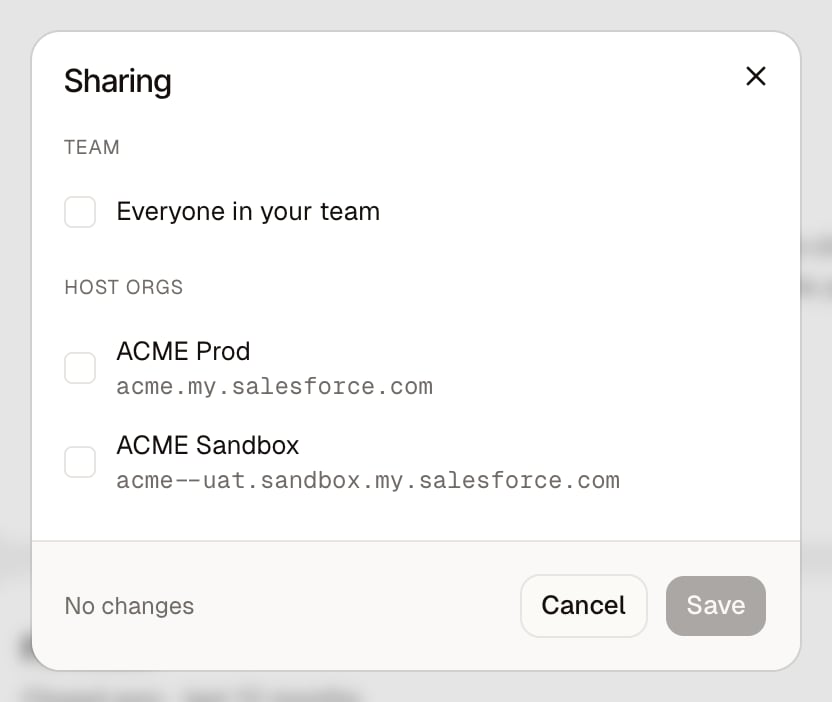
For a project created from a Wisty account, you can share the app with **Everyone in your team**, one or more **Host orgs**, or both. For projects created inside Salesforce, the original host org is the only sharing option.
1. In the project, click **Publish**, then **Sharing**.
2. Select the audience you want to share with.
3. Click **Save**.
4. If you haven't published yet, return to **Publish** and click **Publish app**.
 Sharing changes apply to the live app without republishing. Removing an audience blocks its next launch.
An already-open app may keep reading data until its session ends, for up to an
hour. [Unpublish the app](/docs/publishing/publish#take-an-app-offline) to stop new
launches and subsequent Salesforce requests from all viewers.
If a host org you can share with isn't listed, ask a Wisty team admin to check that it's linked and sharing is on. See [Manage builders and viewers](/docs/salesforce-setup/control-access).
## Open an app in your Wisty workspace
1. Sign in to Wisty and open **Shared with me**.
2. Select the app.
3. If it asks for Salesforce access, connect your own org.
The app uses your selected Salesforce connection in the app's workspace. Use the org switcher in the app's dock if you need another connected org. [Connect Salesforce](/docs/getting-started/connect-salesforce) covers adding or reconnecting one.
## Open an app inside Salesforce
Wisty's in-Salesforce experience uses Salesforce Canvas. Your administrator must first [install Wisty](/docs/salesforce-setup/install) and [connect the host org](/docs/salesforce-setup/connect-host-org).
1. In Salesforce, open the App Launcher and select **Wisty**.
2. If you see **Wisty isn't connected yet**, click **Connect Wisty** and approve access. This is a one-time step unless your admin has pre-authorized you.
3. Find the app in the launcher. Search by name or open **All apps**. Apps chosen by your admin appear under **Pinned**.
4. Select the app to open it.
If you also have builder access, shared apps appear under **Shared with me** in the sidebar. Apps [placed on Salesforce pages](/docs/publishing/embed-in-salesforce) open directly on those pages.
## Copy a Salesforce Web link
A [Salesforce Web link](/docs/getting-started/key-concepts#salesforce-web) lets people in a shared org open the app outside Salesforce, for example from a bookmark or a team message.
1. Publish the app and share it with the host org.
2. Ask a Wisty team admin to [turn on Salesforce Web](/docs/salesforce-setup/connect-host-org#turn-on-salesforce-web-links) for that org if it's off.
3. Click the arrow next to **View App** in the project.
4. Open the org's submenu and click **Copy link**. In the Salesforce builder, the submenu is called **Standalone link**.
5. Send that link to the people who need the app.
Each viewer opens the link, clicks **Sign in with Salesforce**, and signs in to the org the link is for. A login from another org is rejected. **Open in new tab** lets you check the link yourself.
## What viewers can see and change
Apps read Salesforce as the person using them. Each viewer's object permissions, field permissions, and record access apply. Sharing an app doesn't give someone access to the builder's Salesforce data.
If the app changes records, Wisty asks for approval before a write by default. Viewers can choose to auto-approve an operation in a published app and turn that choice off later. See [Update Salesforce records](/docs/building/record-writes).
For a missing app, sign-in problem, or expired connection, follow [Fix common problems](/docs/help/troubleshooting).
Sharing changes apply to the live app without republishing. Removing an audience blocks its next launch.
An already-open app may keep reading data until its session ends, for up to an
hour. [Unpublish the app](/docs/publishing/publish#take-an-app-offline) to stop new
launches and subsequent Salesforce requests from all viewers.
If a host org you can share with isn't listed, ask a Wisty team admin to check that it's linked and sharing is on. See [Manage builders and viewers](/docs/salesforce-setup/control-access).
## Open an app in your Wisty workspace
1. Sign in to Wisty and open **Shared with me**.
2. Select the app.
3. If it asks for Salesforce access, connect your own org.
The app uses your selected Salesforce connection in the app's workspace. Use the org switcher in the app's dock if you need another connected org. [Connect Salesforce](/docs/getting-started/connect-salesforce) covers adding or reconnecting one.
## Open an app inside Salesforce
Wisty's in-Salesforce experience uses Salesforce Canvas. Your administrator must first [install Wisty](/docs/salesforce-setup/install) and [connect the host org](/docs/salesforce-setup/connect-host-org).
1. In Salesforce, open the App Launcher and select **Wisty**.
2. If you see **Wisty isn't connected yet**, click **Connect Wisty** and approve access. This is a one-time step unless your admin has pre-authorized you.
3. Find the app in the launcher. Search by name or open **All apps**. Apps chosen by your admin appear under **Pinned**.
4. Select the app to open it.
If you also have builder access, shared apps appear under **Shared with me** in the sidebar. Apps [placed on Salesforce pages](/docs/publishing/embed-in-salesforce) open directly on those pages.
## Copy a Salesforce Web link
A [Salesforce Web link](/docs/getting-started/key-concepts#salesforce-web) lets people in a shared org open the app outside Salesforce, for example from a bookmark or a team message.
1. Publish the app and share it with the host org.
2. Ask a Wisty team admin to [turn on Salesforce Web](/docs/salesforce-setup/connect-host-org#turn-on-salesforce-web-links) for that org if it's off.
3. Click the arrow next to **View App** in the project.
4. Open the org's submenu and click **Copy link**. In the Salesforce builder, the submenu is called **Standalone link**.
5. Send that link to the people who need the app.
Each viewer opens the link, clicks **Sign in with Salesforce**, and signs in to the org the link is for. A login from another org is rejected. **Open in new tab** lets you check the link yourself.
## What viewers can see and change
Apps read Salesforce as the person using them. Each viewer's object permissions, field permissions, and record access apply. Sharing an app doesn't give someone access to the builder's Salesforce data.
If the app changes records, Wisty asks for approval before a write by default. Viewers can choose to auto-approve an operation in a published app and turn that choice off later. See [Update Salesforce records](/docs/building/record-writes).
For a missing app, sign-in problem, or expired connection, follow [Fix common problems](/docs/help/troubleshooting).