Open Connected orgs, select an org, and choose Org knowledge. Save the context you’d otherwise repeat in every prompt.

Add guidance for a connected org

  1. Open Connected orgs and select the connection you build with.
  2. Open Org knowledge.
  3. Write your guidance, then click Save.
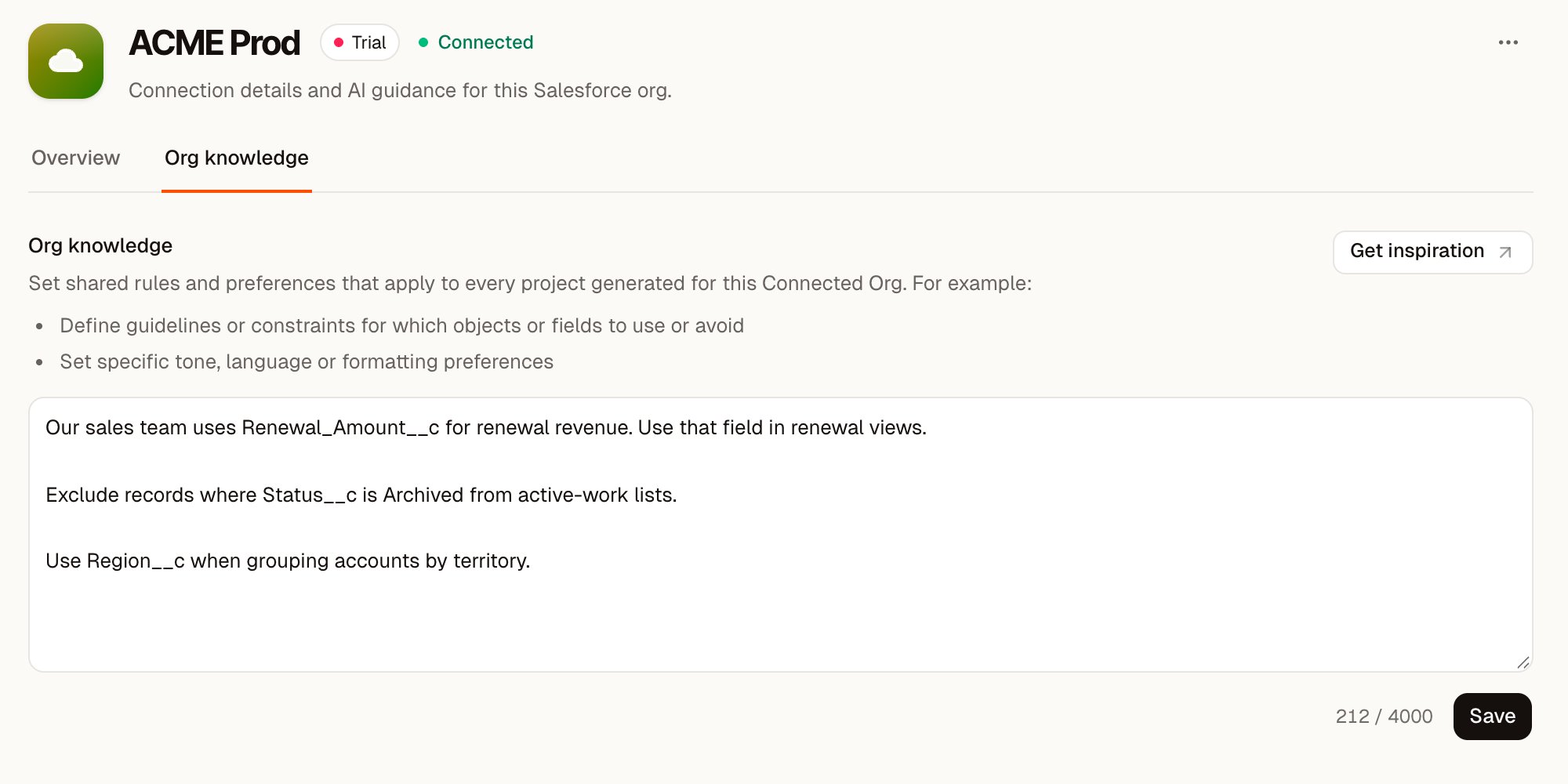
Org knowledge tab for the ACME Prod connected org, with three lines of guidance about custom fields, a 212 of 4000 character counter, and a Save button.

Org knowledge for a connected org. The counter shows how much of the 4,000 characters you've used.

The Org knowledge saved message confirms the change. Wisty includes the saved guidance the next time it generates using that connection. You can enter up to 4,000 characters. Get inspiration shows examples in the editor.

Write the details metadata won’t explain

Metadata tells Wisty which fields exist. Your guidance explains how your team uses them. Useful notes name a convention and the field or object it applies to:
Our sales team uses Renewal_Amount__c for renewal revenue. Use that field in renewal views. Exclude records where Status__c is Archived from active-work lists. Use Region__c when grouping accounts by territory.
Use names that exist in your org. Avoid putting customer records, credentials, or secrets in this field: the guidance is supplied to the generating model. Keep a one-off request in project chat. Org knowledge is for guidance you want Wisty to reuse.

Guide builders inside Salesforce

For a linked Salesforce org, open Host orgs, select the org, and use its Org knowledge tab. That guidance applies to generation for builders using that host org. The connected-org and host-org editors are separate. Update the one used by the builders you want to guide. See Connect a host org for setup.

What changes after saving

Saving guidance affects later generation. It doesn’t rewrite existing project files or update published apps. To apply a new convention to an existing project, ask Wisty to make that change, review the result, and publish changes. Org knowledge is injected as part of the system prompt for each new project. While modern AI models are generally very good at following these instructions, it is guidance and not an access control. The user’s Salesforce permissions and the project’s Salesforce access settings ultimately decide which requests can run.