

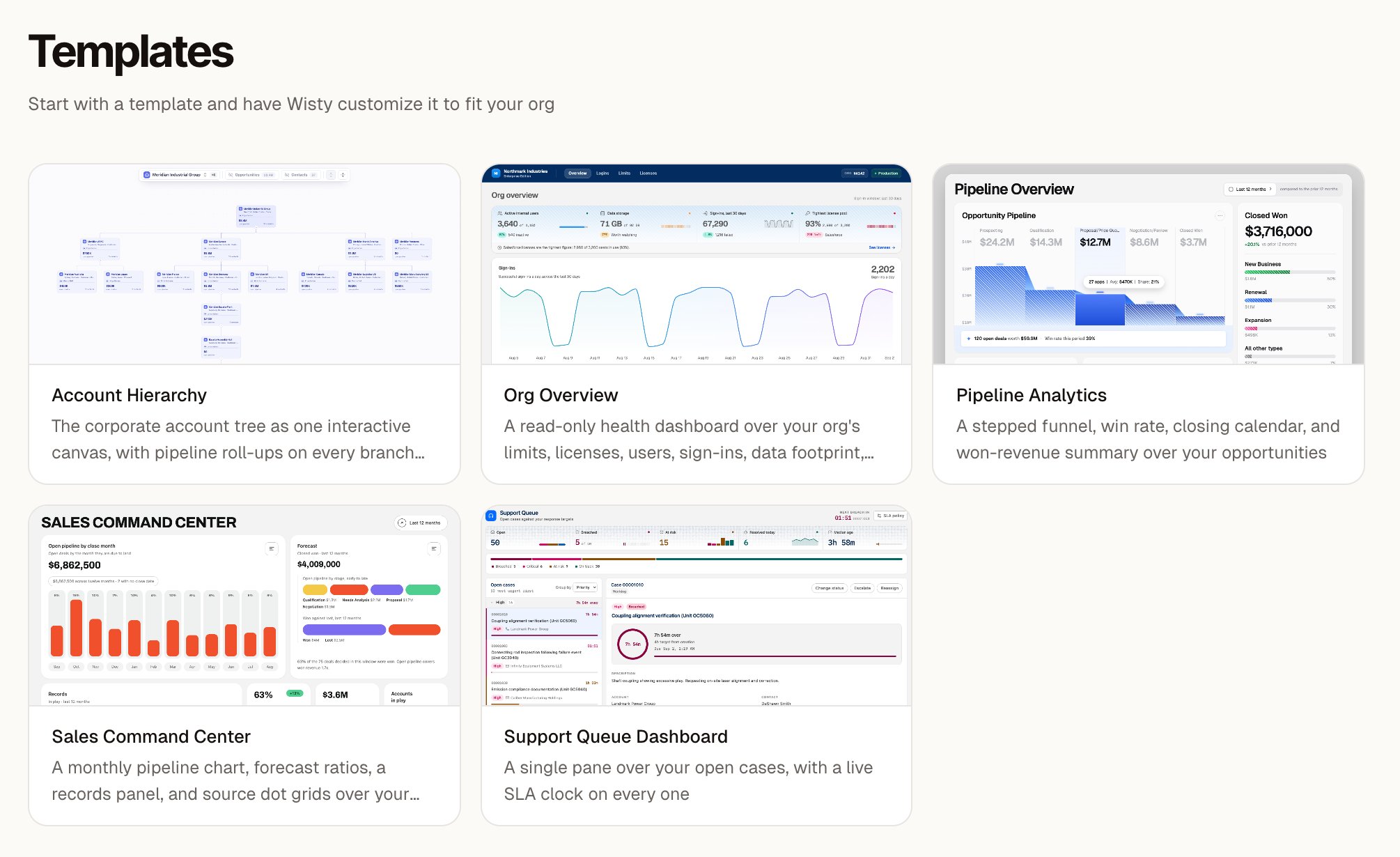
Each template shows a preview of its layout. Select one to read its description and try the demo.
Choose and adapt a template
1
Preview a template
Open Templates and select one that fits the job. Read its description and try the preview. If a Preview button is available, it opens the demo in a separate tab.The demo uses sample data. It doesn’t show records from your Salesforce org.
2
Create your project
Click Use template. Wisty opens a new project with the template’s layout and design style.Wisty asks how you’d like to tailor it. If you haven’t connected Salesforce, connect an org before asking it to adapt the data.
3
Explain what matters in your org
Answer in chat. Name the team, filters, or custom fields that should guide the adaptation. For example:Wisty adapts the template’s data queries to your org. If a section needs a field your org doesn’t have, it can use an appropriate equivalent or leave that section empty and explain why.
4
Check the result
Try the filters and open the sections you plan to use. Check that the data matches your intended scope.Continue in chat to change the layout or behavior, or use Edit without AI for small visual changes. When it’s ready, publish the app.