

A host org links a Salesforce org to your Wisty team so you can share apps with its users. An admin connects it once. People opening apps through Salesforce don’t need a Wisty account.
Change who can open an app
New projects start private. Only their owner can open the published app until sharing is enabled. For a project created from a Wisty account, you can share the app with Everyone in your team, one or more Host orgs, or both. For projects created inside Salesforce, the original host org is the only sharing option.- In the project, click Publish, then Sharing.
- Select the audience you want to share with.
- Click Save.
- If you haven’t published yet, return to Publish and click Publish app.
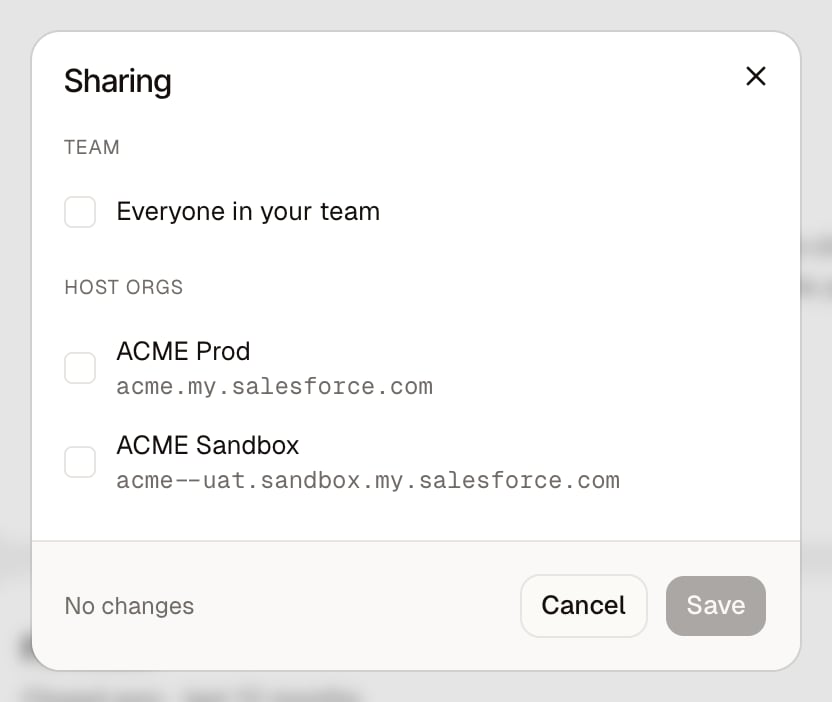
Sharing options for a project created from a Wisty account.
An already-open app may keep reading data until its session ends, for up to an
hour. Unpublish the app to stop new
launches and subsequent Salesforce requests from all viewers.
Open an app in your Wisty workspace
- Sign in to Wisty and open Shared with me.
- Select the app.
- If it asks for Salesforce access, connect your own org.
Open an app inside Salesforce
Wisty’s in-Salesforce experience uses Salesforce Canvas. Your administrator must first install Wisty and connect the host org.- In Salesforce, open the App Launcher and select Wisty.
- If you see Wisty isn’t connected yet, click Connect Wisty and approve access. This is a one-time step unless your admin has pre-authorized you.
- Find the app in the launcher. Search by name or open All apps. Apps chosen by your admin appear under Pinned.
- Select the app to open it.
Copy a Salesforce Web link
A Salesforce Web link lets people in a shared org open the app outside Salesforce, for example from a bookmark or a team message.- Publish the app and share it with the host org.
- Ask a Wisty team admin to turn on Salesforce Web for that org if it’s off.
- Click the arrow next to View App in the project.
- Open the org’s submenu and click Copy link. In the Salesforce builder, the submenu is called Standalone link.
- Send that link to the people who need the app.