Open Settings in your project, enable the access it needs, and click Save changes. These controls apply to the running preview; a published app picks up changes when you publish again.

Choose the access your app needs

Every new project starts with standard data reads and object metadata enabled. The other categories are off. The write controls have an additional approval step, including optional auto-approval for published apps. See Update Salesforce records. Wisty checks the app’s requests against these categories before sending them to Salesforce. Salesforce then applies the running user’s own permissions. Turning a category on doesn’t grant access to records or fields that Salesforce denies. These are categories of requests, not a list of allowed objects or fields. Manage object, field, and record permissions in Salesforce.

Save an access change

  1. Open the project’s Settings tab.
  2. Turn the required control on or off.
  3. Click Save changes.
  4. Return to Preview and try the relevant feature.
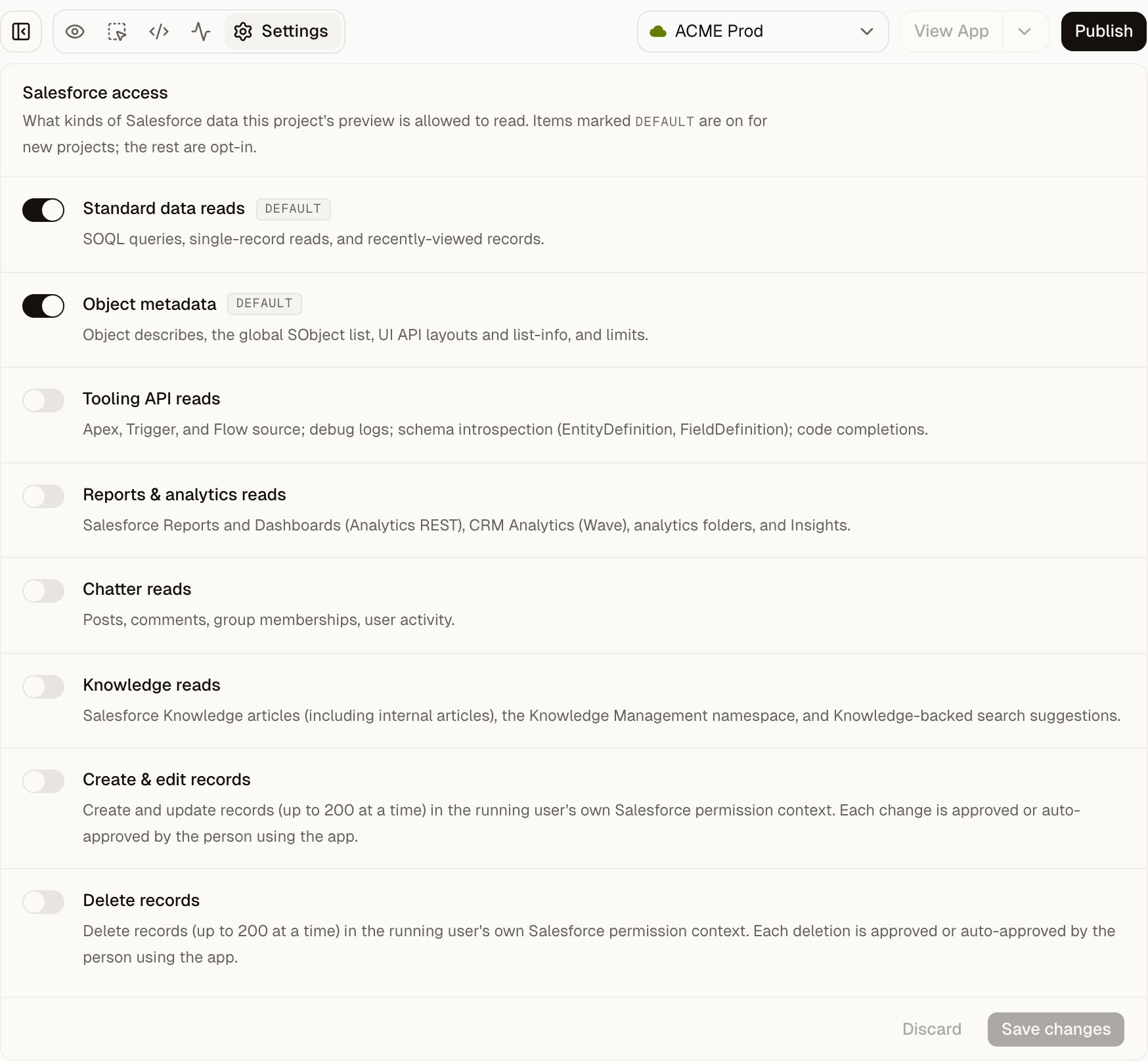
Salesforce access settings showing all 8 controls, with only Standard data reads and Object metadata enabled.

Standard data reads and Object metadata are on by default. Enable other categories only when the app needs them.

If people already use a published version, publish changes to apply the new access settings there too. Saving project settings alone doesn’t change the published app’s access.

Respond to an access request in chat

When Wisty needs an access category that’s off, it can show an Allow access card in chat. Read the category and its description.
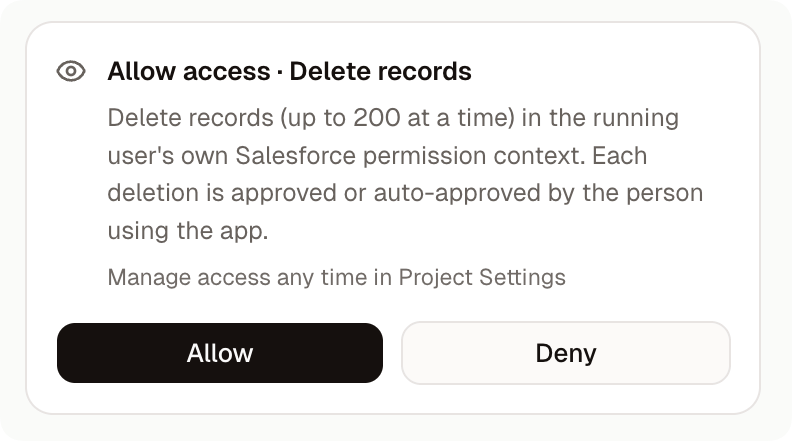
Allow access card in chat for Delete records, explaining that deletions run in the user's own Salesforce permission context and are approved by the person using the app, with Allow and Deny buttons.

An access request for Delete records. The card names the category and what it permits.

Click Allow to enable it and continue the build. Click Deny to have Wisty continue without it. You can change the setting later in Settings. The card enables a category for the project. It doesn’t approve an individual Salesforce record change.

Inspect a blocked request

Use Network on a desktop browser to see Salesforce requests made by the preview.
  1. Open Network and choose Blocked.
  2. Expand a request to read why it was refused.
  3. If it names a missing access category, click Open in Settings.
  4. Enable it only if the feature needs it, click Save changes, and try the feature again.
An unsupported request can also be blocked. Enabling more categories won’t make an unsupported endpoint available; ask Wisty to change the feature.

When Salesforce returns an error

Choose Errors in Network and expand the failed request. A Fix this button is available for errors Wisty can help repair. Connection or permission problems may need action in Salesforce instead. The All and OK filters help you inspect successful requests. The panel shows details such as the request path, query, status, and duration. The Writes section below it shows record-write activity without the record values. These controls govern the running app. For the separate limits on what the generating model receives, see How Wisty uses your data.